 Mountmere
Android
Connect a USB drive or card reader and open a volume in Files. Create a resumable image of a drive and save it to a destination you choose.
Requires Android 8.0 or later. Physical drives require USB host support.
Browse files from Windows, Linux, and Mac volumes on your Android device or Mac.
Check supported formatsAndroid and Mac releases are in preparation.
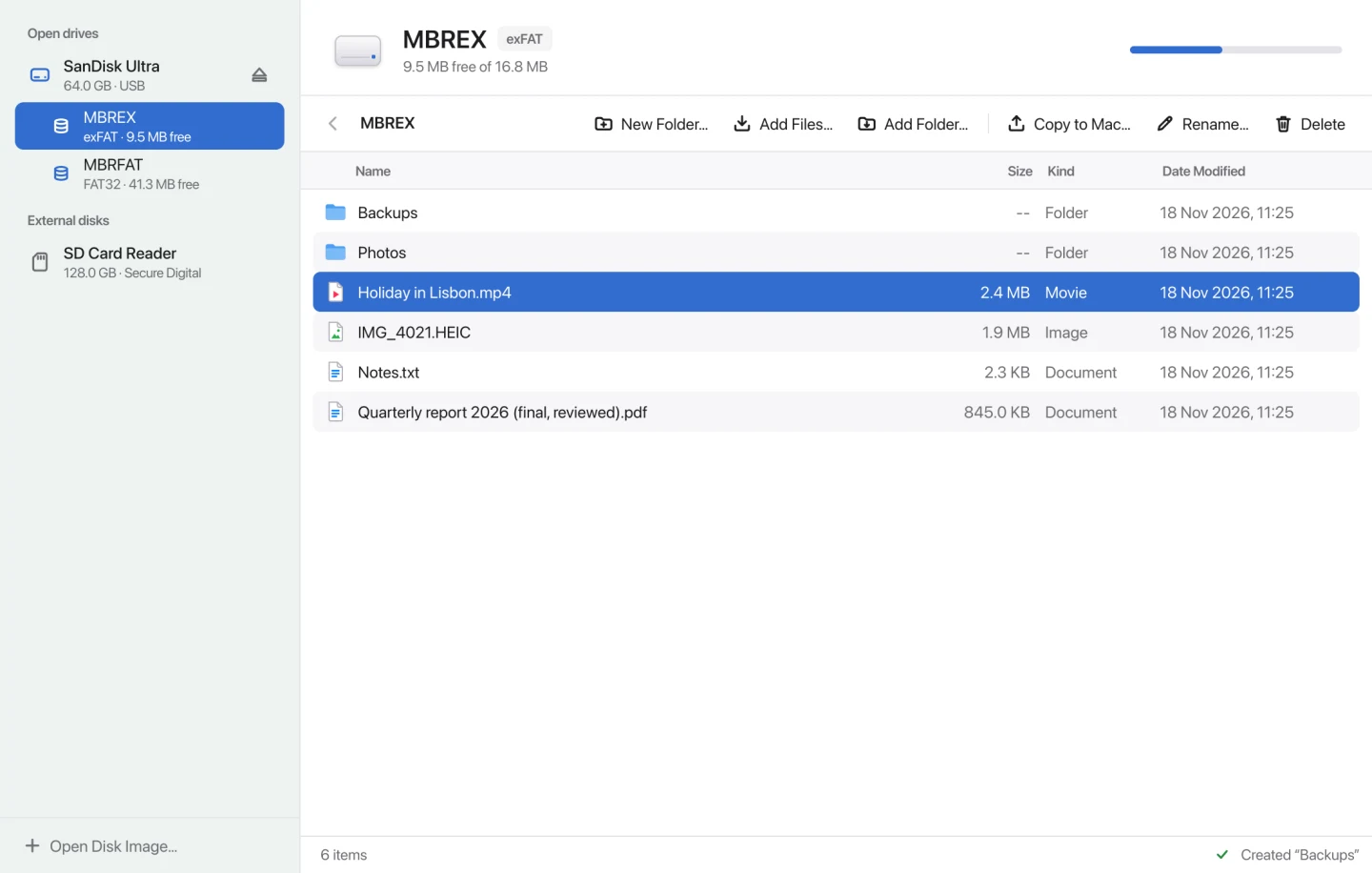
Connect a USB drive or card reader and open a volume in Files. Create a resumable image of a drive and save it to a destination you choose.
Requires Android 8.0 or later. Physical drives require USB host support.
Open an external drive or a raw disk image in Mountmere’s file browser. Copy files between your Mac and a writable volume, or copy files out of an image.
Requires macOS 11 or later. Supports Apple silicon and Intel.
Both apps support these filesystems. Mountmere checks each volume before allowing writes.
| Filesystem | Physical drive | Raw disk image |
|---|---|---|
| FAT32 and exFAT | Read / write | Read-only |
| NTFS | Read / write1 | Read-only |
| ext2, ext3, and ext4 | Read / write2 | Read-only |
| HFS+ and APFS | Read / write3 | Read-only |
Open supported raw images on either platform. Use Image drive on Android to create one, with the option to resume an interrupted image job.